Set up your preferred payment gateway, and start accepting card payments to instantly increase your cash flow.
Automate payment reminders and get paid on time. You can also send personalized thank you notes when you receive payments.
Need to issue a refund or make adjustments for an overpaid invoice? No problem! Just create a credit note and apply.
Instantly find out which customer is slow to pay and which invoices have already been paid. Also run detailed reports.
Choose your favorite theme from our template gallery, and make it your own before you send it to a client.
We are supporting the beautiful invoice template, which is used when you print the invoice template. You can manage the downloaded invoice format by using this interface.
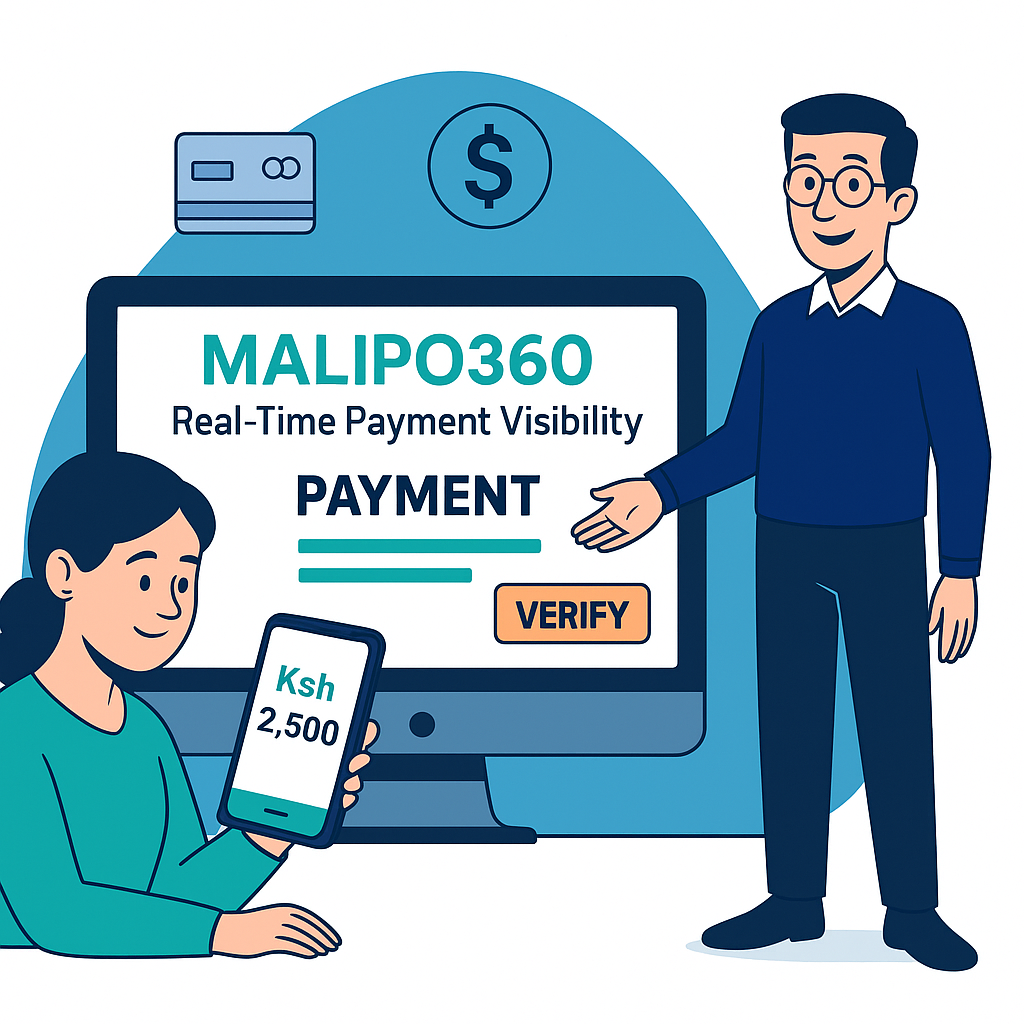
Malipo360 helps you maintain clean, accurate financial records—ideal for SMEs, SACCOs, MFIs, and growing businesses.
Real-time payment visibility.When a customer pays, your team sees it immediately. No calls, no screenshots, no delays.
Malipo360 helps you maintain accurate verified payments.Malipo360 gives everyone the clarity they need securely and in real time.



Infy Invoice has helped me structure my business by organizing the client details and monitoring late payments. Their mobile app is super simple and easy to use.
I've been using Infy Invoice for two of my small businesses for the last few years. It is the most customizable and user-friendly invoicing software I know of, with exceptional customer support.
Goes without saying, first impression of the customers matters a lot for any business. Be it showing how professional or reliable you are, it all starts with the first email you send.
Yes, you can. When you create an invoice, Infy Invoice will prompt all the unbilled expenses associated to the contact (as shown in the image below).
To convert an estimate to an invoice, follow the below steps. Click on the Estimates tab on the left pane. Select the the estimate you want to convert to invoice. Click on Convert to invoice.
Once you send a drafted invoice through Infy Invoice, its status is automatically changes to ‘Sent’. Alternatively, you can manually change its delivery status by following these steps.
Yes, you can. To add a new category, follow the steps mentioned below: Click on the Expenses module on the left sidebar. Click on the +New button.
Enter your email to receive daily updates.
Over past 10+ years of experience and skills in various technologies, we built great scalable products. Whatever technology we worked with, we just not build products for our clients but we a